Game Asset Concepts
Preview character portraits, tile ideas, scenery, and item icons before polishing the final artwork in an editor.
Upload an image and convert it into beautiful pixel art. Customize every detail to match your style.
Live Workbench
Drag or drop an image here, or click to select one
Your image will be processed in your browser and will not be uploaded to any server.
Fast previews for game assets, icons, profile art, and social posts.
Image conversion runs in your browser, so your files stay on your device.
Open the pixel art generator and start experimenting immediately.
Examples
Use Cases
Pixel Art Generator helps you convert photos, illustrations, and reference images into a retro pixel-style look right in your browser.
Adjust pixel block size, palette mode, brightness, contrast, saturation, and dithering to test different visual directions. Create a pixel art version in seconds, then download it for further editing or use in your personal projects. Different source images respond differently to pixel size and palette settings, so small adjustments can create noticeably different pixel art styles.
Fast, Private, Free
All processing happens in your browser. No signup. No limits.
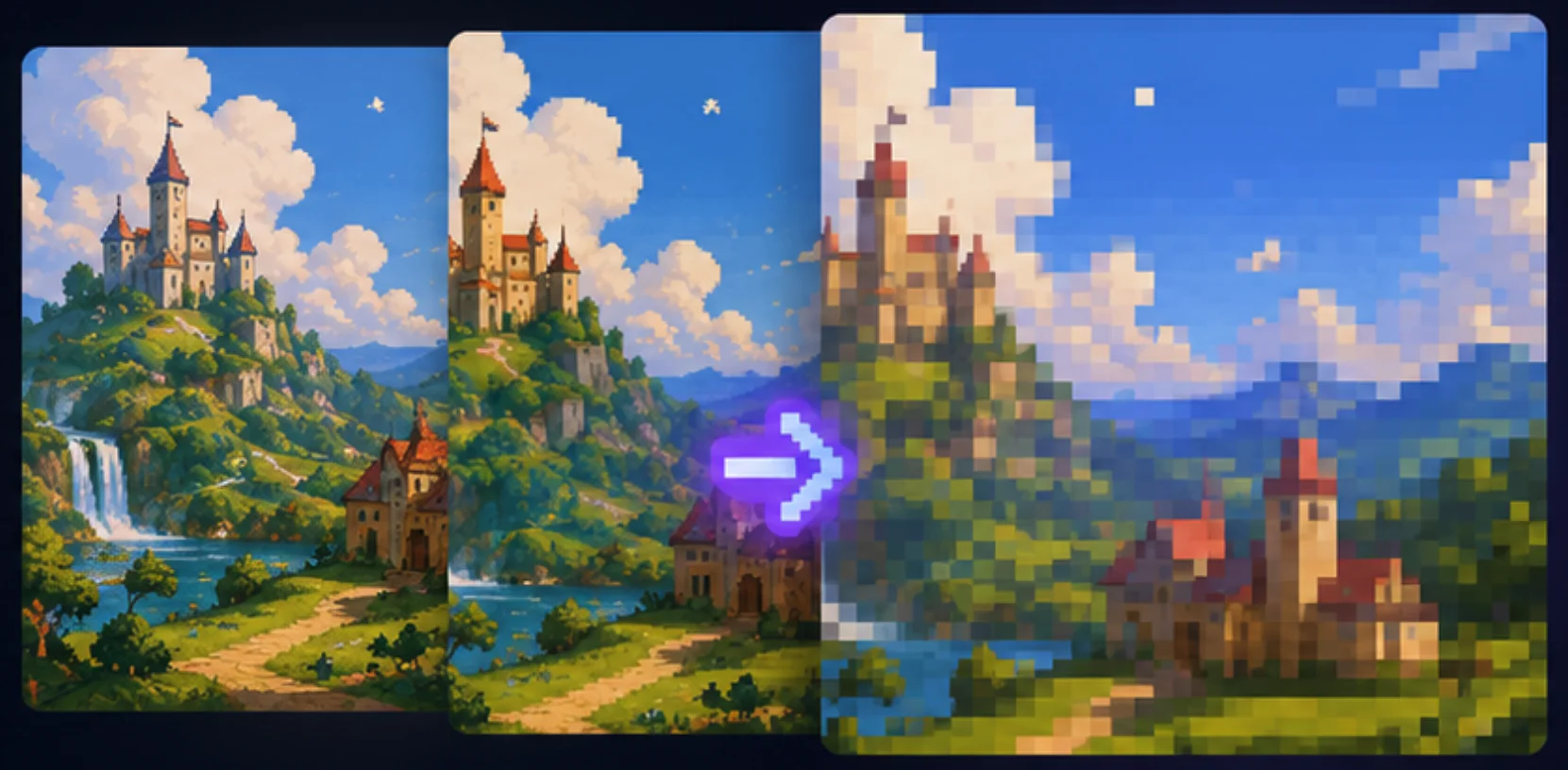
Preview character portraits, tile ideas, scenery, and item icons before polishing the final artwork in an editor.
Convert a face, logo draft, or simple illustration into a compact retro image for avatars and social visuals.
Compare colors, contrast, and dithering choices so your next pixel art generator result has a clearer visual direction.
Features
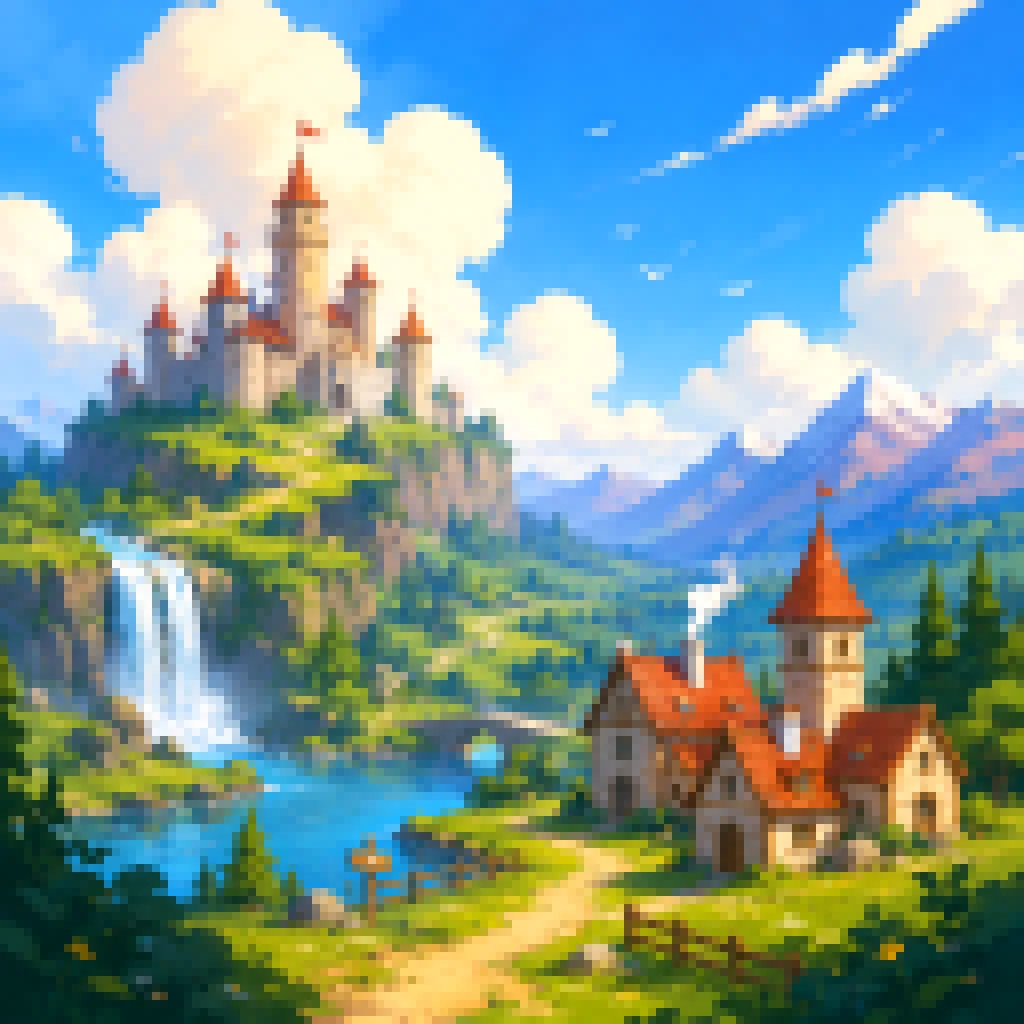
For quick results, this mode reduces resolution and keeps the source colors. Use it when you want a pixel art generator online to preview style, compare pixel block sizes, and make basic adjustments before downloading.
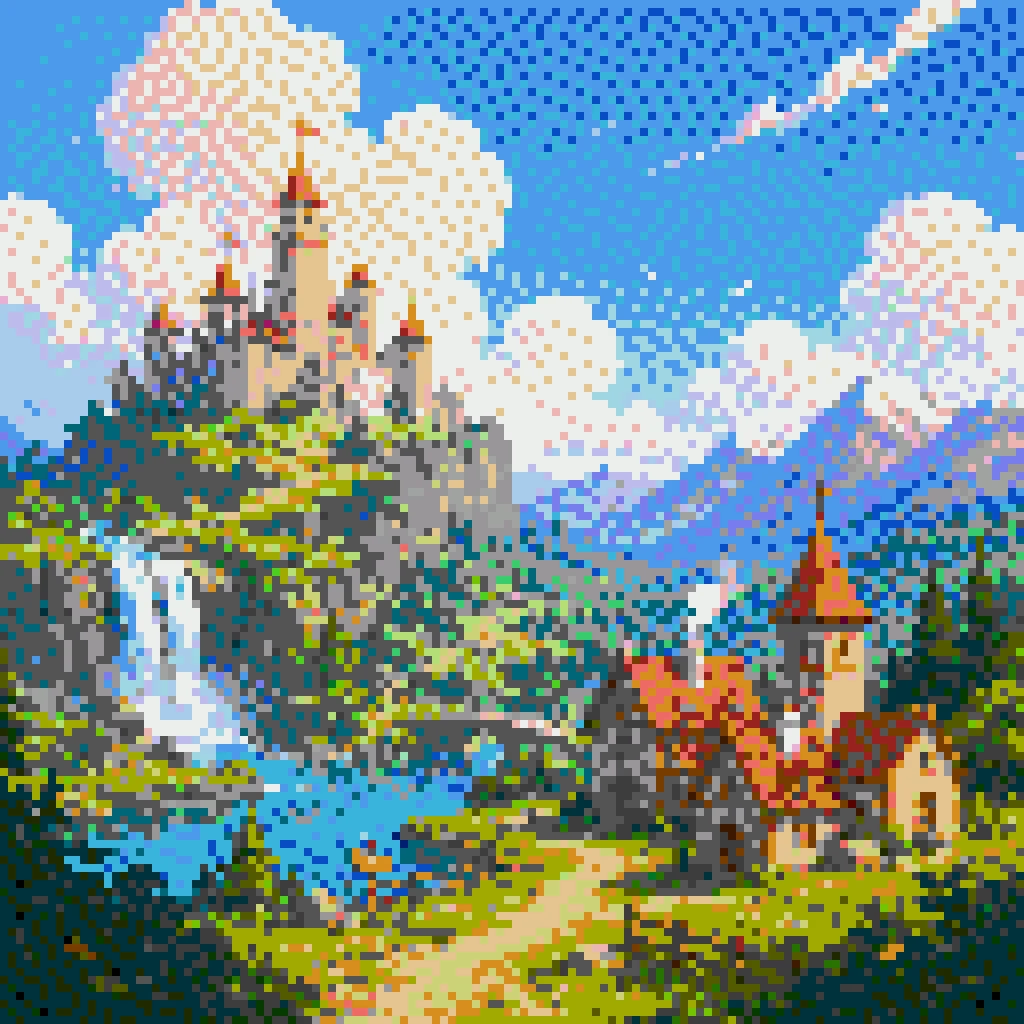
For a more classic retro look, switch to palette mode. The free pixel art generator can limit colors, apply dithering, and create cleaner edges for icons, game assets, portraits, and landscapes.
Quickstart
Choose a PNG, JPG, WebP, or GIF. The conversion runs locally in your browser, so the source file stays on your device.
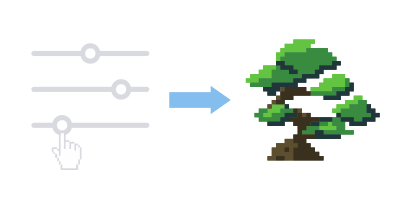
Adjust pixel block size for abstraction, then refine contrast, brightness, and saturation. Palette mode adds color control and dithering when a simple conversion is not enough.
Review the preview and export the result at a small size or the original image size. You can include a grid overlay when the output will be used as a pattern.
Tips
A good source image gives the pixel art generator clearer shapes to work with. Use these guidelines when a result feels noisy, too soft, or too detailed.
Photos with a clear subject, strong silhouette, and obvious light-to-dark structure usually convert better. Busy backgrounds, tiny details, and low-contrast areas can turn into visual noise, especially when the pixel art generator has to simplify a crowded photo.
Use a larger pixel block size for a more abstract retro look, quick icon drafts, and simple game asset concepts. Use a smaller pixel block size when landscapes, faces, buildings, or product images need more detail. If the result feels messy, increase the block size; if the subject disappears, reduce it.
Palette mode helps the free pixel art generator create a cleaner style when the original image has too many colors. Adjust contrast and saturation first, then use dithering when gradients, shadows, or soft color transitions need texture instead of flat bands.
Tip
Small tweaks in source image, pixel size, and palette can dramatically improve your final pixel art.
FAQ
Answers about privacy, ownership, and settings for this pixel art generator online.
Yes. The conversion happens in your web browser, and your image is not uploaded to our servers. You still need to protect the source image on your own device.
We do not claim ownership of images created with the tool. Usage rights depend on the source image you upload, so make sure you have the necessary permissions before using the output commercially.
Start with a clear, high-resolution source image. Use a smaller pixel block size for more detail, adjust contrast and saturation, then switch to palette mode when you need tighter color control.
The tool currently processes the full image. To pixelate one area, crop the source image first, then upload the cropped version for conversion.
Use the contact link in the footer for support, feature requests, or feedback about the image conversion workflow.